 KES
 USD - International

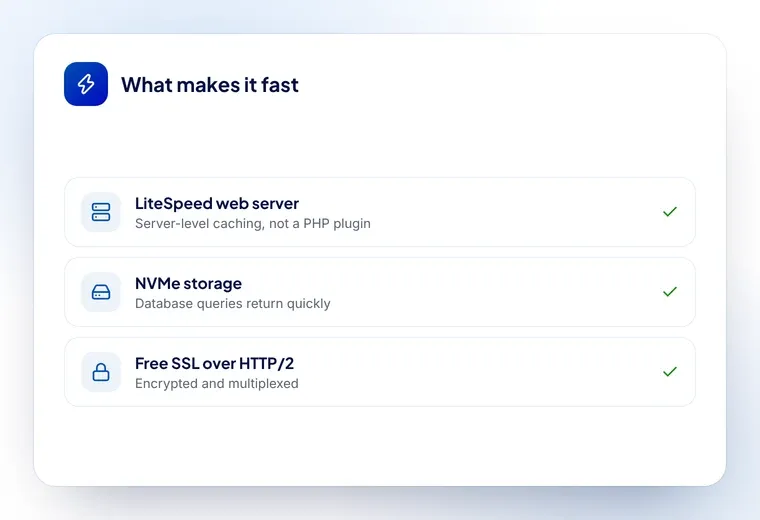
Most advice about website speed starts with your images. That matters, but it skips the thing doing the work: the web server that answers every request before a single image is sent.
What a web server does
When someone opens your site, their browser asks a server for a page. On a WordPress site that usually means running PHP, querying a database, assembling the HTML and sending it back. Do that for every visitor and the server spends most of its time rebuilding pages that have not changed.
Where LiteSpeed differs
LiteSpeed is a drop-in replacement for Apache that handles this differently in three ways that matter:
- Server-level caching. A caching plugin written in PHP still has to start PHP to tell you a page is cached. LiteSpeed answers from its own cache before PHP runs at all.
- Event-driven connections. Apache traditionally gives each connection a process. LiteSpeed handles many connections in one, which is why it holds up better when traffic arrives all at once.
- Reads Apache config.
.htaccessrules and rewrites keep working, so moving to it does not mean rewriting your configuration.
Turning it on for WordPress
Our hosting runs LiteSpeed, so the only step is the free LiteSpeed Cache plugin:
- Install LiteSpeed Cache from the WordPress plugin directory
- In its settings, turn caching on — the defaults are sensible
- Enable image optimisation and CSS/JS minification under Page Optimization
- Clear the cache and test your site
Check it is working
Load a page twice and look at the response headers in your browser’s developer tools. A cached response
carries an x-litespeed-cache: hit header. If you only ever see miss, caching is off or something is
excluding that page.
What it will not fix
A faster server will not rescue a page carrying six megabytes of unresized photographs, a theme loading four font families, or a dozen plugins each adding their own scripts. Caching makes a slow page slow once rather than slow every time. Fix the page as well.
Measuring the difference honestly
Before you change anything, take a reading. Otherwise you are guessing, and every optimisation article you read will sound equally convincing.
- PageSpeed Insights gives you Google’s own view, including the Core Web Vitals it uses for ranking. The number that matters most is Largest Contentful Paint — how long until the biggest thing on screen appears. Under 2.5 seconds is the target.
- Your browser’s developer tools, on the Network tab, show you what is actually being downloaded and how big it is. This is where you discover the 4 MB hero image nobody resized.
- Test twice. The first load after a cache clear is the slow one. The second is what most visitors get.
Run the test, turn caching on, run it again. If the second number is not better, something is excluding your pages from the cache — a plugin, a cookie, or a rule in the settings.
What to do when caching is not enough
Caching serves a page that has already been built. It does nothing for the work that has to happen fresh on every request, and that is where the remaining slowness usually lives.
Pages that cannot be cached
A cart, a checkout, a logged-in dashboard and a booking form all have to be built per visitor. Those pages depend on PHP and the database being quick, not on the cache. If they are slow, look at the plugins running on them before anything else.
The database
A WordPress database that has been running for years accumulates post revisions, expired transients and orphaned metadata. A cleanup plugin, run once, often takes a noticeable amount off every uncached page load.
Too many plugins
Every active plugin adds queries, scripts or both. Deactivating one you no longer use is free, instant, and more effective than most of the tuning people try first.
Running out of resources
If the site is slow because it keeps hitting the limits of a shared plan — memory, processes, I/O — no amount of caching fixes it. That is the point to move up a plan, or on to a VPS with resources nobody else shares.
A sensible order to work in
- Turn on LiteSpeed Cache and confirm you are getting
hitresponses - Resize the images. Nothing on a web page needs to be 4000 pixels wide
- Remove the plugins you do not use
- Enable minification for CSS and JavaScript
- Clean up the database
- Re-test, and only then consider a bigger plan
Most sites finish at step two. The ones that do not are usually running something heavy enough to deserve a VPS, and that is a different conversation — one we are happy to have before you spend the money.